Showing posts with label CUI. Show all posts

Friday, August 15, 2014

Create and Add Extended Help to a custom AutoCAD Command

The extended help information provided for commands through the CUI can be a very handy way to help users understand the functionality of a command. Several of the AutoCAD provided commands have nice extended help files. For example the Scale command:
 
Just to clarify what extended help is, if you hover over a command in an AutoCAD ribbon you will first see the Tooltip.
  
Hover for a bit longer and the Extended Help will display.
 
The extended help file is managed in an XAML (Extensible Application Markup Language) file. This is very similar to XML in format and can be worked with in a text editor.
Here are some points to make:
  • You can manage just one XAML file for your environment as it is structured to define extended help information for multiple commands.
  • Each command will have its own unique ID (defined in the XAML file) and then linked to the appropriate command using the AutoCAD CUI Editor
  • The XAML file is fairly easy to work with, especially if you are just wanting to add text and images
To create an XAML file you can paste the below structure into a blank file in Notepad (or other text editor) and save as a .XAML file type.
 

<ResourceDictionary
 xmlns="http://schemas.microsoft.com/winfx/2006/xaml/presentation"
 xmlns:x="http://schemas.microsoft.com/winfx/2006/xaml"
 xmlns:src="clr-namespace:Autodesk.Windows;assembly=AdWindows">
 
  <src:RibbonToolTip x:Key="SLD_TOOLS_CMD_0001">
    <src:RibbonToolTip.ExpandedContent>
      <StackPanel>
        <TextBlock Background="AntiqueWhite" TextAlignment="Left">
        Shades an area in light blue by single clicking within a closed boundary. 
        </TextBlock>
        <Image Source="images/SLDtool0001.png" Width="Auto" Height="Auto">
        </Image>
      </StackPanel>
    </src:RibbonToolTip.ExpandedContent>
  </src:RibbonToolTip>

</ResourceDictionary>

The ID is important (RibbonToolTip x:Key). This will be used to connect each RibbonToolTip to a Ribbon button in AutoCAD.
Multiple RibbonToolTips can be defined in this single file. Just copy the entire RibbonToolTip section:

<src:RibbonToolTip x:Key="SLD_TOOLS_CMD_0001">
...
</src:RibbonToolTip>


and make sure to use a unique ID. (Note, whether you have 1 or multiple RibbonToolTip definitions they will all be wrapped inside the
<ResourceDictionary...>
...
</ResourceDictionary>

To add this extended help RibbonToolTip to a command in AutoCAD:

Open AutoCAD and the CUI Editor and locate the command that you want to add extended help information to. (Refer to this post on how to create a CUI ribbon element). Click the browse button to locate the XAML file created above.

Once you select the XAML file a dialog box will display showing all of the extended help IDs that are defined in the XAML file. Select the appropriate ID for the command you are working with and click OK.

 
Notice after doing this you will see the XAML file defined in the Extended Help field and the Help ID separated by a ':'

 
Now add the command to a Ribbon Panel (if it is not already) and save the CUI changes. When you hover over the ribbon button you should first see the Description

 
And then the extended help defined by the XAML file.

Using extended help is a streamlined method to provide user documentation to project teams as it does not require browsing to a different location. The functionality of the command can be explained in quite a bit of detail with this additional text and image.


Thursday, December 13, 2012

Restore or Reset an AutoCAD CUI File

It is no wonder the most popular AutoCAD command is UNDO. UNDO might be the most popular action in all other areas of our lives if we had the option. I would much rather click UNDO after my toddler tips over a glass of milk at dinner than to go through the effort of cleaning it up. UNDO would also come in handy when our new puppy pees on the carpet. Even though we do not have an UNDO button in real life we can appreciate that we do in AutoCAD. So, what about when working with the AutoCAD CUI file? Good news! There is also an UNDO (sort of)...

When AutoCAD is installed on a computer the out of the box Support folder which includes the ACAD.CUIx file is tucked away on the C:\ drive. When AutoCAD is launched for the first time it configures the software for the currently logged in user. Part of this configuration process is copying the contents of the Support folder to the user's appdata\roaming\autodesk\...\support folder. If a different user logs on to the computer the same process happens so each user has his/her own Support folder and therefore, his/her own ACAD.CUIx file.

As changes are made to the ACAD.CUIx file it is possible for the CUI to become corrupt. It is sometimes difficult to detect when a CUI file has become corrupt but several unexpected errors can be resolved by replacing the CUI file with either a previous version or the original ACAD.CUIx file.

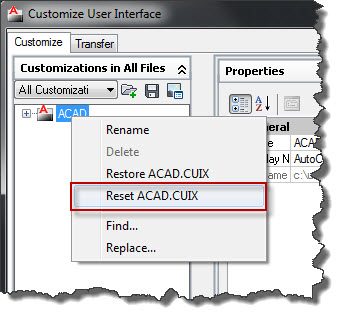
There are two choices available: Restore the CUI file, or Reset the CUI file. Restoring the CUI file is basically an UNDO and any changes that were made since the CUI Editor was opened are lost. Resetting the CUI file replaces the current CUI file with the original ACAD.CUIx file from the AutoCAD Install Location. So any changes that have ever been made to the CUI file are lost.

To Restore the ACAD.CUIx:
Open the CUI dialog (Manage tab | CUI). You will see the ACAD.CUI file and can confirm the location is in your users folder.


Right click on the ACAD.CUI and select Restore ACAD.CUIX


This option is nice if you have customizations that you want to keep and just want to UNDO the current modifications to the ACAD.CUIx file. Notice the CUI file will be restored to the state it was in prior to the CUI Editor being opened.


If the ACAD.CUIx file seems corrupt and you want to start all over with the original ACAD.CUIx file then you would choose the Reset option:

Open the CUI dialog (Manage tab | CUI), right click on the ACAD.CUI and select Reset ACAD.CUIX
This option will lose any changes made to the ACAD.CUIx file and will restore from the original out of the box version.
 
 
Resetting the CUI is also a way to clean out all partially loaded CUI files that might be in place from working with AutoCAD vertical applications. Additionally, it is important to note that Workspaces are saved within CUI files so depending on which CUI file custom Workspaces have been created in those will be lost as well.
 
Any time strange errors seem to be occurring consider the CUI as an option. I have seen several Fatal Errors when AutoCAD is starting up be resolved by Restoring or Resetting the CUI.


Monday, October 24, 2011

Handling Partial CUI Files From Vertical Applications


When managing multiple AutoCAD profiles and multiple vertical applications there are a few things that are important to keep in mind. One item is the CUI file that your profile points to. Let's say you have an AutoCAD based user profile that is pointing to the delivered acad.CUIX file that is located in your %RoamableRootFolder%\\support folder. When an AutoCAD vertical application is launched it often times partially loads a CUI file (or many) into the acad.CUIX file. When a CUI file is partially loaded into the acad.CUIX this definition takes place within the CUIX file itself and is not controlled by the profile. This means that any profile that also points to the delivered acad.CUIX file will also have the partially loaded CUI content. Even though the program may not be loaded the CUI content is which results in having "unresolved" CUI files: (this post uses Integraph's CADWorx Plant which is an AutoCAD vertical application).

Several vertical applications load themselves into AutoCAD by partially attaching their CUI(s) to the main AutoCAD CUI as shown above. This can be controlled but there are some downsides. One way to control this is to still create different profiles for each vertical application and actually point to a unique main AutoCAD CUI for each profile. The vertical application profile will then partially load into the unique AutoCAD CUI. The downside to this method is the users will not have any custom workspaces or content from profile to profile because the main AutoCAD CUI is different in each profile. Another way this can be controlled (which is the method I choose) is to manually unload unneeded partially loaded CUI files from the main AutoCAD CUI file.

To do this:

1. Launch vertical application X (in this example CADWorx Plant). Application X will partially load its CUI into the main AutoCAD CUI


2. Now launch AutoCAD into a different profile. Notice the CUI from Application X is still partially loaded but unresolved. This is because we are still pointing to the same main AutoCAD CUI file.


3. Open the Customization User Interface (CUI)

4. Expand the main AutoCAD CUI | Partial Customization Files node

6. Right click on any extra CUI files and select Unload


This does not cause any harm to the vertical application X. When it is launched again it will partially reload the CUI files if necessary.

This method of handling partially loaded CUI files from vertical applications does require the users to be responsible for maintaining their environment. One of the reasons I am comfortable with this approach though is having extra CUI files partially loaded is more of an annoyance rather than a disruption (in most cases). If the users choose to not manage their CUI files most vertical applications still function properly. A second reason I choose this method is it keeps flexibility in the environment by allowing users to customize their main AutoCAD CUI file and have those customizations available in all of their profiles.

Note, if you have your own custom CUI files that are being deployed from a network location using the Enterprise CUI file is a very streamlined way for managing these. This concept is covered in previous posts.

Monday, June 27, 2011

Creating an AutoCAD ribbon component

It might always seem that everyone is using the most recent version of AutoCAD, this is not necessarily true though. I work for a global consulting engineering firm and we have been on AutoCAD 2008 up until just earlier this year. The same goes for several of our clients and it is not uncommon for us to deliver packages in pre-AutoCAD 2008 environments.

This sounds archaic and out-dated but the real world has many variables that come into play and it is not feasible to always upgrade as soon as a new version of AutoCAD is released. Sure, if your company is working strictly with Autodesk products upgrades can be smooth and more timely, but when you rely on several different AutoCAD vertical packages and customized environments upgrades can become a time consuming effort that requires planning and strategy.

Regardless of what version of AutoCAD you may be working with I thought it might be helpful to do a post on User Interface (UI) and specifically talk about converting a pre-AutoCAD 2009 toolbar button to an AutoCAD 2011 ribbon component.

Let's say you have a custom toolbar in AutoCAD 2008 with a button that executes a command defined in mnl or dll that inserts a valve on a specific layer, breaks a line, allows rotation, etc. You want the same functionality in AutoCAD 2011 but you would like for your users to be able to execute the command from a custom ribbon. The command behind the button will not change, it can still execute with the same definition (unless it is in .net and the dll needs to be recompiled using the updated api files) we just need to make the command available via the ribbon.

To get started: Copy your custom content (cui, mnl, etc) to a new folder. Open AutoCAD 2011 and create a new user profile (Options | Profiles | Add To List)


To migrate a legacy cui file type in cui or select cui, User Interface from the Manage tab on the AutoCAD 2011 ribbon. From the Customize User Interface dialog click the Transfer tab. On the right side of the transfer tab (Customizations in New File) click Open. Note: to see .cui files (which are legacy since they are not .cuix) you will need to select .cui in the file type dropdown list.


Browse to the new folder created above and open the cui file. As soon as the cui file is open click the save icon and a new cuix file is created.


You can now choose how the architecture of your new profile will be built, I will partially load the new cuix file in to my main AutoCAD cui file. Later, we can come back and load it as the enterprise cui but while we are developing it we need to be able to write to it.

Just by partially loading the cuix file you will have the functionality that was in the legacy cui environment. This is all that is required to transfer functionality of a legacy menu system into a newer version of AutoCAD. Now let's create a new ribbon tab instead of offering only toolbars.

A quick note on the architecture of the ribbon. There is one ribbon with multiple tabs (these are the different areas that are selected at the top of the ribbon) each tab is divided into panels. We will create 1 new tab with a panel that contains our valve command. There is quite a bit more detail that can happen at the panel level such as sub-panels, panel rows, dropdowns, and separators but we will just focus on the ribbon tab and a single panel in this post.

Open the cui, scroll down to Partial Customization Files and select our custom cui file. Click the Ribbon node, right click on Tabs and select New Tab.


The ribbon tab is a container that will contain a panel or multiple panels. Create a new panel.


Populating a panel with commands that are already defined is simply a matter of dragging the command from the cui command list up to the panel.


To associate the panel with a tab drag the panel up into the tab


This association only needs to be created once. As the commands within the panel are changed (added or removed) they will reflect on the tab.

In order for the new ribbon tab to be available it needs to be toggled to display for the current workspace (similar to other toolbars, menus, and ribbon tabs).


The new ribbon tab now shows up in the main AutoCAD ribbon


And when it is selected the new panel (or panels) display with the commands that were added to each panel (Note, the order of the commands on the panel is controlled back in the cui by dragging the commands to their desired row and order).

When the new panel component is selected the same command is invoked! You have streamlined the migration of a legacy toolbar button to a new sexy ribbon component. Depending on how your new Ribbon/Tab/Panel layout ends up you may want to take the time to create new graphics for the components and if you choose to do so it is just a matter of pointing to the new image file from the ribbon element.


Wednesday, September 15, 2010

Streamlined Method for Modifying an Enterprise CUI File

In a previoust post we talked briefly about CUI files. There are 2 primary CUI files used by an AutoCAD user profile: Main and Enterprise. By default the enterprise CUI file is read only. This makes it an excellent option for placing your custom network content in. The main CUI file can be on each user's local C:\ drive. This allows the users to modify their base AutoCAD environment to their preference without inadvertently modifying the shared network CUI file. The .arg file that we created in this earlier post is where the paths to each CUI file are defined.

With a production environment any changes made to the network CUI will be visible to all users the next time they load AutoCAD. So when we want to make a change to the network CUI we probably want to test it in our test environment and then here is a streamlined method to modify the live network CUI file:

1. Make a copy of the production .arg file that all of your designers are using to your local machine (or your test environment).

2. Rename the .arg file with some sort of "admin" tag.

3. Switch the path definitions for the Main CUI and the Enterprise CUI.

production .arg file:


admin .arg file:


This will create a user profile where the acad.cui file on your C:\ drive will be loaded as the enterprise (read only) CUI and the shared network CUI file will load as your main CUI which you can now edit. Just be careful since this is a live shared file. Also be careful for savvy users who get clever (or read this post!) and switch these path definitions to modify the shared network CUI file.

Safety note: Always keep a backup of the current production CUI file. This way if it is modified by a user you can replace it or if you make a mistake while editing the live file you can quickly restore the working file.

You can further streamline this environment by creating 3 desktop shortcuts (on your machine only) and changing the target (profile parameter):

1. (Production) Target = "C:\Program Files\AutoCAD 2010\acad.exe" /p "X:\SLD\Profiles\SLD.arg"

2. (Development) Target = "C:\Program Files\AutoCAD 2010\acad.exe" /p "X:\SLD_dev\Profiles\SLD_dev.arg"

3. (Admin) Target ="C:\Program Files\AutoCAD 2010\acad.exe" /p "X:\SLD_dev\Profiles\SLD_Admin.arg"

This makes each profile accessible quickly depending on the situation. You can now add a UI to a custom (or standard) command and have it available instantly to your designers without having to load anything on their machines.